
01 / Leave the phone behind
Run without a phone
Apple Watch has no built-in way to carry your own library. TickPlay stores audio on the watch itself, so playback carries on with your iPhone switched off or left at home.
Transfer your own audio to Apple Watch over local Wi-Fi, then play it offline with FLAC, Opus and synchronized LRC lyrics — no account, no cloud, and no iPhone required while you listen.
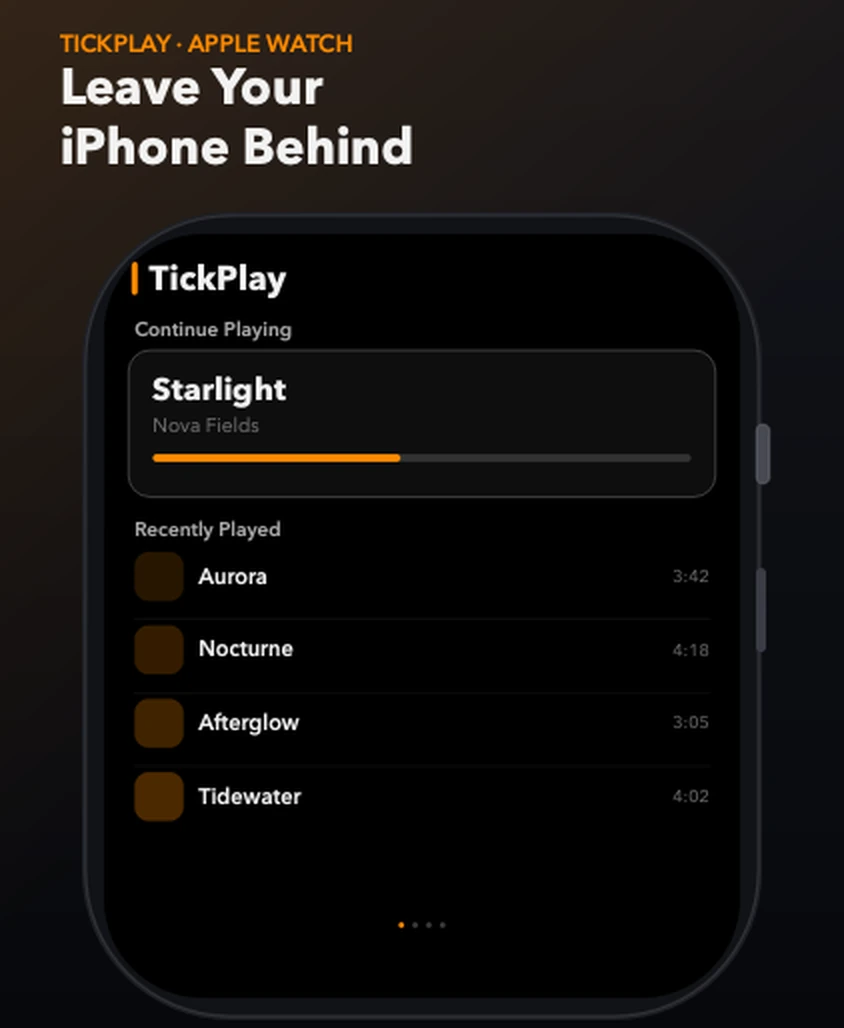
What TickPlay is: TickPlay is a standalone offline music player for Apple Watch that lets you transfer your own music files to your watch and listen without carrying your iPhone. The stock Music app is built around Apple Music and iCloud, and most watch players expect a paired iPhone or a subscription. TickPlay takes the opposite approach — your files, on your watch, played offline.
Apple Watch is a good music player with nothing to play. TickPlay gives it your own library, and keeps it there.
Apple Watch has no built-in way to carry your own library. TickPlay stores audio on the watch itself, so playback carries on with your iPhone switched off or left at home.
No catalogue and no subscription. Whatever files you have — albums, live recordings, your own mixes, audiobooks — transfer them and play them.
watchOS does not decode FLAC. TickPlay does. Lossless files play as they are, next to your MP3s, in the same library and the same queue.
Drop a .lrc file next to the track and TickPlay scrolls the lyrics in time, with the current line centred and highlighted on a full-screen view.
No cable, no iTunes, no companion app, no cloud. A plain HTTP file server on your computer is all it takes to send files to the watch.
Background audio keeps running when you lower your wrist or leave the app, which is exactly when a workout, walk or commute needs it most.
Each feature page states what it does, how it works, and where its limits are.
Play music files stored locally on Apple Watch, with no network connection and no iPhone nearby.
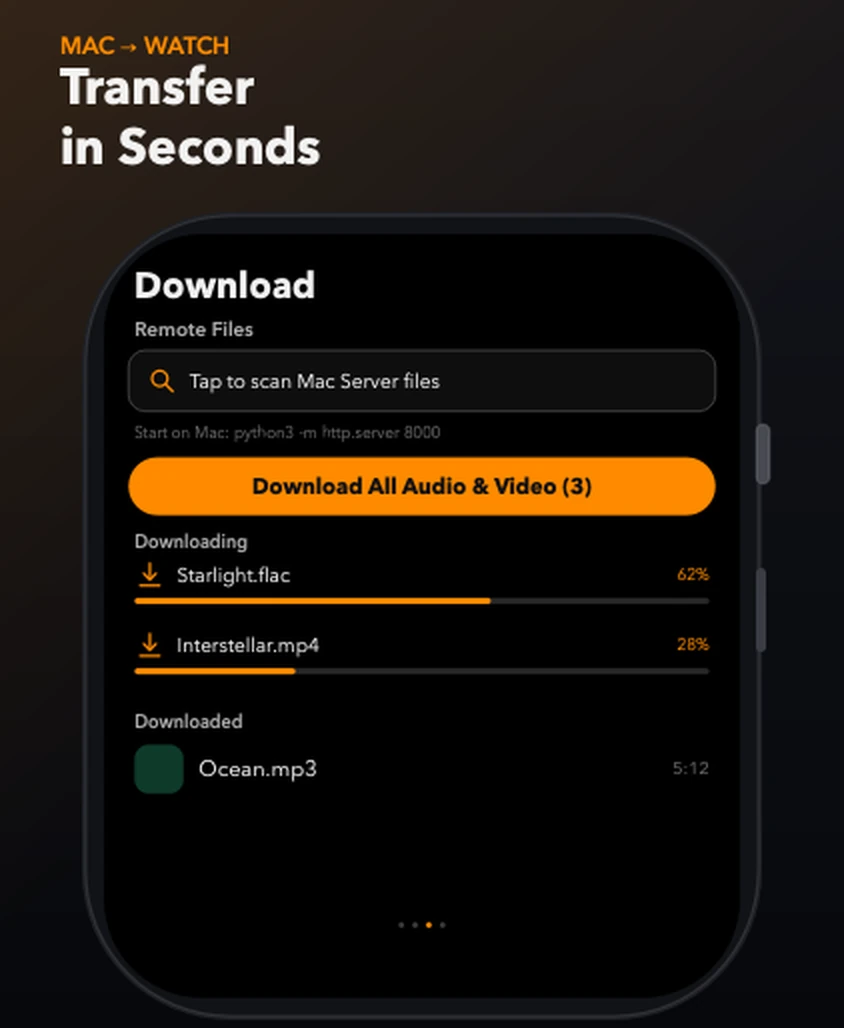
Send audio and video from a computer to the watch over the local network using a plain HTTP file server — no cable, no iTunes and no cloud.
Play FLAC, OGG and Opus lossless audio alongside MP3, M4A, AAC, WAV, M4B, WMA and APE — with a clear split between native and engine-decoded formats.
Load a .lrc file with the same name as the track and TickPlay scrolls the lyrics in sync, with the current line centred and highlighted.
Build a queue from your stored tracks, then loop the playlist, shuffle it, or repeat a single song — all from the watch.
Music keeps playing after you lower your wrist or leave the app, so a workout, walk or commute is not interrupted.
No cable, no iTunes, no companion app and no cloud account anywhere in the process.
Any folder on a Mac, PC or Linux machine. TickPlay reads whatever is in it — FLAC, MP3, M4A, WAV, OGG, Opus and more.
Open a terminal in that folder and run python3 -m http.server 8000. Nothing else needs to be installed.
With both devices on the same network, open the Download tab in TickPlay, scan the server and pull the folder down in one pass.
Open the Library tab and play. From this point on there is no network, no account and no iPhone involved.
Ten audio formats play on Apple Watch with TickPlay, including lossless FLAC, OGG and Opus. Formats that can only be stored are listed separately.
Every figure here can be checked against the App Store listing, which is linked at the bottom of this page.
TickPlay runs entirely on the device. There is no account, no cloud and no telemetry.
TickPlay never asks who you are. There is nothing to register and nothing to log into.
Transferred files live in on-watch storage and are never uploaded anywhere.
No third-party SDKs, no tracking, no adverts. The App Store privacy disclosure is "Data Not Collected".
The only network access is the local Wi-Fi transfer you start yourself.
Short, specific answers to the things people actually get stuck on.
Send a folder of music from a Mac or PC over local Wi-Fi, step by step.
Name the lyric file correctly and get scrolling lyrics on the watch.
What plays, what is decoded by the built-in engine, and what only stores.
Fixes for transfers that stall, files that will not play and storage errors.
Where the music comes from, and what each approach needs to work.
Short answers about offline playback, transfers, formats and privacy.
TickPlay is a standalone offline music player for Apple Watch. You transfer your own audio files to the watch and play them from watch storage, so you can listen without carrying your iPhone and without a streaming subscription.
No. Once your files are on the watch, playback does not require the iPhone to be nearby or switched on. A paired iPhone is still needed to install and update the app from the App Store, and a computer is needed for the initial file transfer.
Yes. FLAC is decoded by TickPlay's built-in engine, so lossless FLAC files play on the watch without being converted first.
Put the watch and your computer on the same Wi-Fi network, start an HTTP file server in your music folder on the computer (python3 -m http.server 8000 is enough), then open the Download tab in TickPlay, scan the server, and download the folder.
No. TickPlay has no account, no advertising, no analytics, no tracking and no third-party SDKs. Media stays on the watch and is never uploaded. The App Store privacy disclosure is listed as 'Data Not Collected'.
TickPlay requires watchOS 10 or later, on Apple Watch Ultra 3, Ultra 2, Ultra, Series 11, 10, 9, 8, 7, 6, 5, 4 or SE. A paired iPhone is required to install and update the app.
TickPlay · Version 1.0.9 · watchOS 10 or later · One-time purchase on the App Store.