
How to Transfer Music to Apple Watch
Send music from your computer to Apple Watch over your local Wi-Fi network using TickPlay and a plain HTTP file server.
Quick answer: To transfer music to Apple Watch with TickPlay: put the watch and your computer on the same Wi-Fi network, start an HTTP file server in your music folder on the computer with python3 -m http.server 8000, then open the Download tab in TickPlay, scan the server, and download the folder.
Before you start
- TickPlay installed on the Apple Watch
- A computer (macOS, Windows or Linux) holding the audio files
- The watch and the computer connected to the same Wi-Fi network
- Python 3 on the computer, or any other HTTP file server
Step by step
-
Put the watch and computer on the same Wi-Fi network
TickPlay transfers over your local network, so both devices must be on the same network. A phone hotspot works if both devices join it.
-
Start an HTTP file server on the computer
Open a terminal in the folder that contains your music and run python3 -m http.server 8000. Any other HTTP file server works equally well; nothing needs to be installed beyond that.
-
Note the computer's local address
The file server prints an address such as http://192.168.1.20:8000. This is the address you will scan from the watch.
-
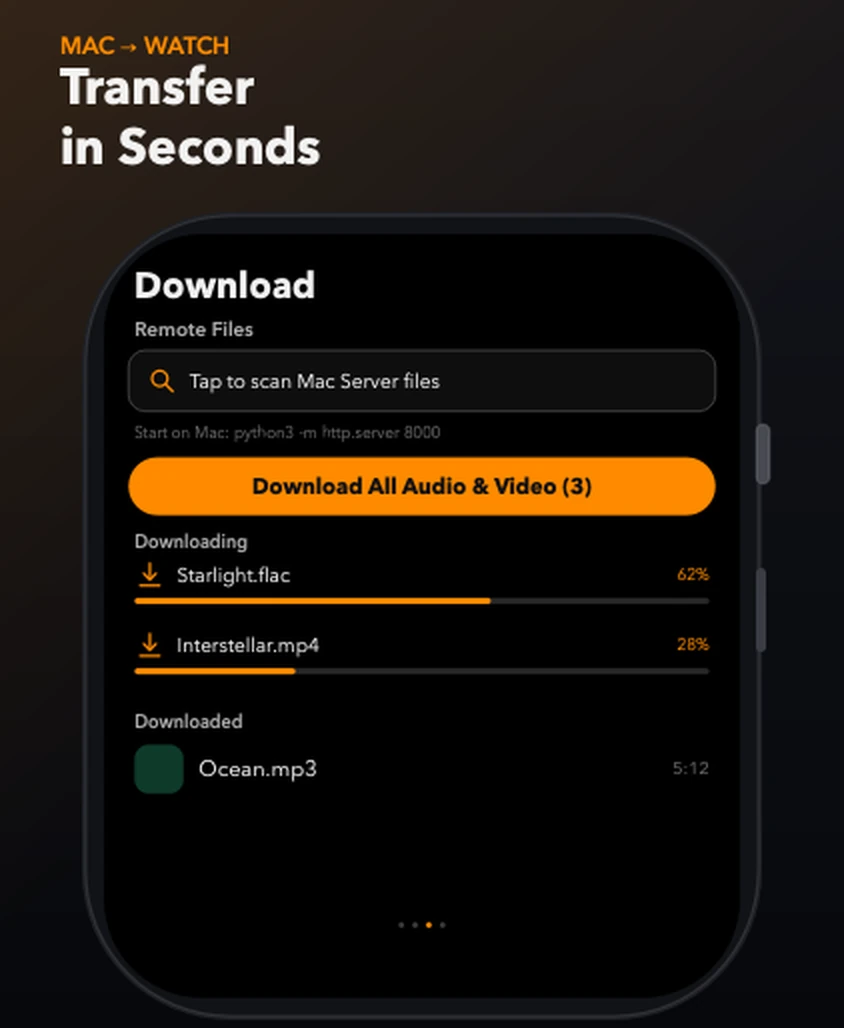
Open the Download tab in TickPlay
On the watch, open TickPlay and switch to the Download tab. The screen lists remote files and offers a field to scan the server.
-
Scan the server and browse the folder
Tap to scan the server address. The Download screen browses one remote folder at a time.
-
Download the folder in one pass
Select everything you want from the current folder and start the download. Files are integrity-checked as they arrive and filed automatically into audio and video.
-
Play from the Library tab
When the transfer finishes, open the Library tab and play the stored files. No iPhone, no network and no account are required from this point on.
Limits and conditions
- The watch and the computer must be on the same local network.
- Only one remote folder is browsed at a time.
- Unsupported containers can be stored but will not play.
- Transfers count against the storage quota you set in Settings (500 MB, 1 GB or 2 GB).
If something goes wrong
- The scan finds no server
- Confirm both devices are on the same network and that the file server is still running. Guest Wi-Fi networks often isolate devices from each other.
- The transfer stops partway
- Files that already completed stay intact. Scan the server again and only the missing files are downloaded.
- A file downloaded but will not play
- It is probably a container TickPlay can store but not decode. Check the supported formats page.
- The watch reports it is out of space
- Raise the quota in Settings, or clear the cache to free space immediately.
Where this information comes from
These steps describe the behaviour of TickPlay 1.0.9 and are checked against the App Store listing and the official support documentation. If a step does not match what you see, email zfwkqns@gmail.com with your Apple Watch model and watchOS version.
Sources
- TickPlay on the App Store — last verified 2026-10-10
- TickPlay Support — last verified 2026-10-10
Steps on this page reflect the TickPlay 1.0.9 release. Last verified 2026-10-10.