
How to Add Synced LRC Lyrics to Your Music
Prepare a .lrc file so TickPlay scrolls lyrics in sync with your music on Apple Watch.
Quick answer: TickPlay loads lyrics from a .lrc file that has the same name as the track — Starlight.flac needs Starlight.lrc. Transfer both files to the watch and the lyrics load automatically; tap the album artwork during playback to open the full-screen scrolling view.
Before you start
- An audio file already prepared for transfer
- A .lrc lyric file for that track
- The two files named identically apart from the extension
Step by step
-
Find or create the LRC file
Obtain a .lrc file for the track, or write one. An LRC file is plain text with timestamps such as [00:12.50] in front of each line.
-
Name it after the track
Give the lyric file exactly the same base name as the audio file. Starlight.flac is paired with Starlight.lrc.
-
Save in a supported encoding
Save the file as UTF-8 or GB18030. Both are supported, which covers most lyric files found online.
-
Transfer both files together
Put the audio and the lyric file in the same folder on your computer, then transfer the folder to the watch from the Download tab.
-
Open the lyrics during playback
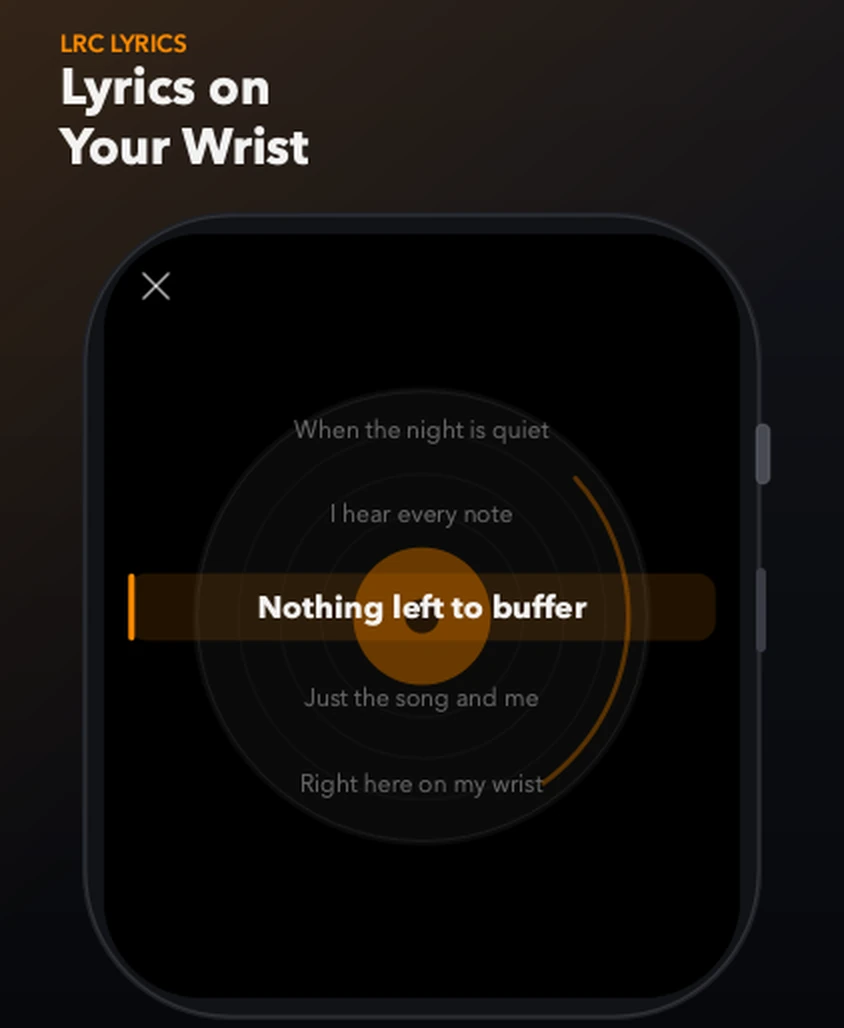
Start the track and tap the album artwork. TickPlay opens the full-screen lyric view, with the current line centred and highlighted.
Limits and conditions
- TickPlay does not download lyrics from the internet; you supply the .lrc file.
- The lyric file must share the track's base name.
- Scrolling accuracy depends on the timestamps in the file itself.
If something goes wrong
- No lyrics appear at all
- Check the file name matches the track exactly, including capitalisation and extension.
- Lyrics show as garbled characters
- Re-save the .lrc file as UTF-8 and transfer it again.
- Lyrics scroll out of time
- The timestamps inside the LRC file are inaccurate. Edit the timestamps or source a better file.
Where this information comes from
These steps describe the behaviour of TickPlay 1.0.9 and are checked against the App Store listing and the official support documentation. If a step does not match what you see, email zfwkqns@gmail.com with your Apple Watch model and watchOS version.
Sources
- TickPlay on the App Store — last verified 2026-10-10
Steps on this page reflect the TickPlay 1.0.9 release. Last verified 2026-10-10.